Single tap
Choose a lighting mood
Tap the centre of a Loxone wall control to switch the lights on and move through the lighting moods configured for that area.
 Download PDF
 Commercial automation handover
A practical guide to the lighting, climate, shading, audio, access, security and building-wide controls at 1 Tarver Street, Port Melbourne VIC 3207.
01 · Everyday controls
Factory Sound runs automatically through schedules, presence and room conditions. These controls cover the common moments when staff need to make a manual change.
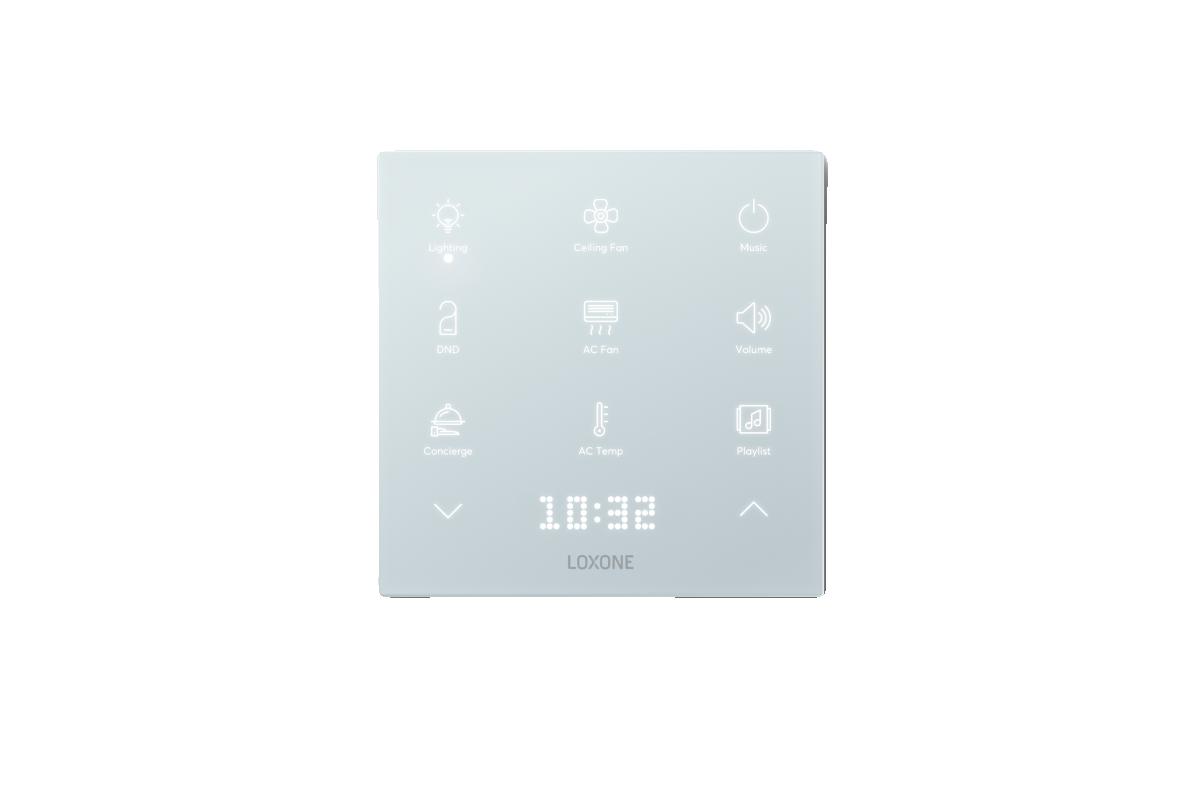
The installed labels show the functions assigned to each touch point. The app provides the same controls with more detail for authorised users.
Tap the centre of a Loxone wall control to switch the lights on and move through the lighting moods configured for that area.
Double-tap the centre touch point to switch the room off. The corner touch points operate audio or shading where those functions are available.
Use the labelled corner touch points for volume, playback and shading. In rooms with two blinds, the left side controls the shade and the right side controls the blackout blind.
The last person leaving can activate Away in the app or from the assigned Entry control. At the internal Staff Entry NFC Code Touch, select the #6 tick function, then use an authorised code or fob to arm the store.
Schedules and presence automation continue in the background, but authorised users can manually adjust lighting, climate, shading, audio, access and gates in the Loxone app.
02 · Building-wide controls
These modes and schedules coordinate several areas at once. Access to them should be limited to the staff members responsible for opening, closing and system administration.
Resets the building, switches lighting off and arms the alarm so Factory Sound is secured after hours.
When armed, a trigger causes the lighting response, internal speaker siren, external siren and security-company notification configured for the building.
Office schedules coordinate the automated operating periods for relevant lighting and climate zones.
Retail schedules coordinate the automated operating periods for the shop and showroom areas.
Central controls
Select heating, cooling or automatic changeover, with central climate control available per level.
Switch all lighting on or off, or select the individual lights and areas you need.
Move all building shades together or control selected shades and blackout blinds individually.
Manage individual users, groups, PINs and NFC fobs for the areas each person is permitted to enter.
Select sources, zones and volume for areas fitted with Loxone audio and public-announcement functions.
Operate the carpark gate and answer warehouse roller-door or staff-entry calls from authorised controls.
03 · Area guide
Search by room, feature or function, or filter by area type. Open any card to see the installed controls and automatic behaviour.
04 · Loxone app & users
Administrators can create staff and contractor accounts, assign building areas and add physical access credentials. Every user should have their own account, PIN and fob.
Open the Loxone app and select Factory Sound. Project credentials and the Miniserver serial are provided separately through a secure channel.
Project credentials and the Miniserver serial are supplied separately for security.
From the main menu, choose User Management. Administrator access is required to create users or change permissions.
Choose Create new user, enter the person’s name and keep the user active. Give every person their own account.
Add the person’s email and phone number where required so the account remains easy to identify and manage.
Assign only the groups the person needs, such as Office, Retail, Warehouse or Contractor access. Reserve Administrator for trusted system managers.
Add a strong account password and allow password changes where appropriate. Use a separate user-interface password only when required.
For physical access, create the person’s unique PIN or learn their NFC fob against the relevant Factory Sound entry points.
On the user’s own device, they can change their password and enable Face ID from User Settings.
Administrator checklist
05 · Support
Note the affected area, what you expected to happen and what happened instead. A photo or short video helps us resolve the issue faster.
Quick checks
LightingIf a light does not start automatically, check whether presence control is enabled and whether the room has been manually overridden.
App connectionConfirm the device has Wi-Fi or mobile data and that the correct Factory Sound account is signed in.
AudioConfirm the selected zone, source and volume before reporting a speaker issue.
ShadingAutomatic movements may be responding to temperature or room conditions. Check the app for a manual override.
AccessConfirm the user is active, has the correct access group and is using their own PIN or assigned fob.
Practical user training for the installed system.
Applies to Loxone products supplied for the project.
Remote support for initial operational refinements.
Advice for future automation, access, audio and reporting needs.